Admin User Guide
User with Admin credentials have additional rights and can:
- Add a new user
- Change user privileges
- Set up a project
- Assign users to projects
Add a new user
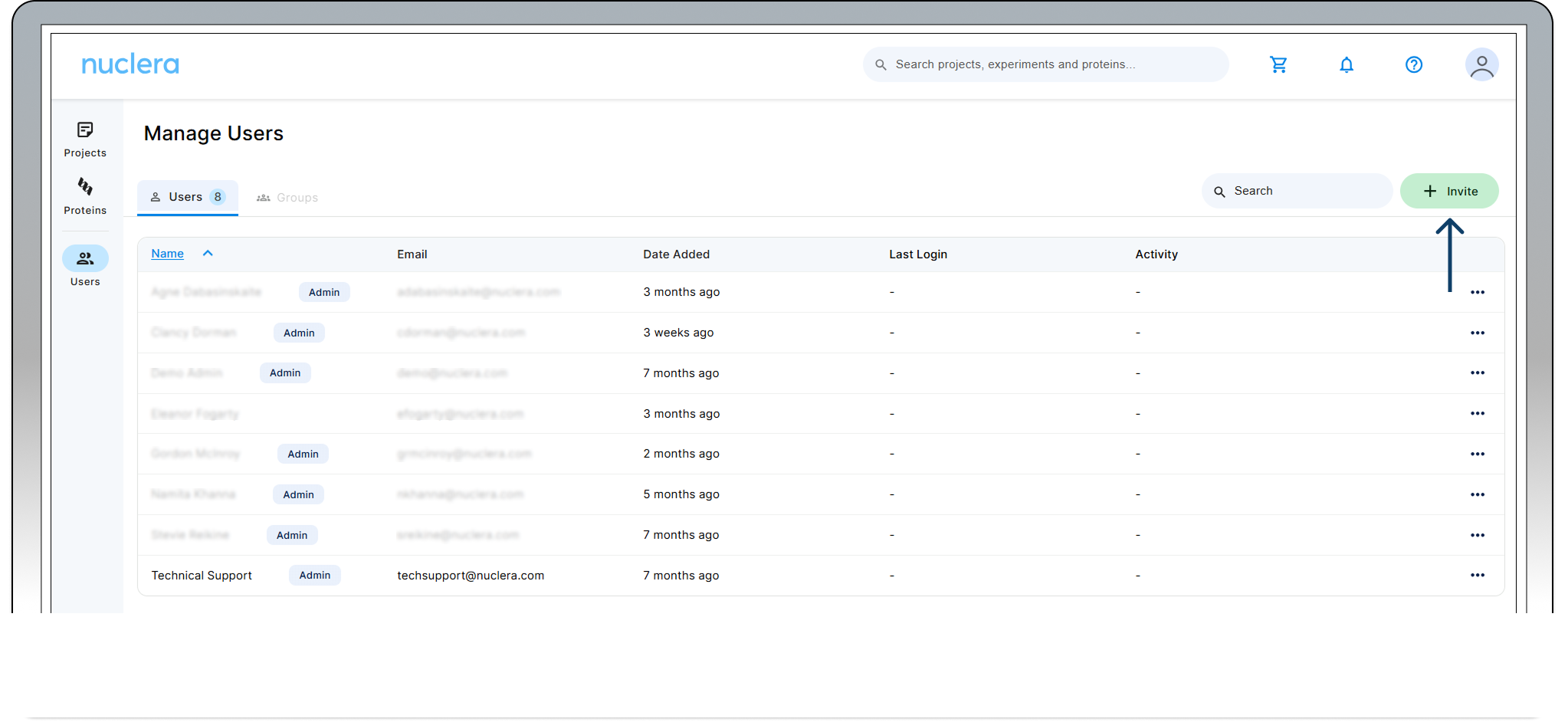
- On the left hand side bar, select the "Users" icon
- From the Manage Users page click the [Invite] button.
- Fill the email address of the invitee and click [Send].
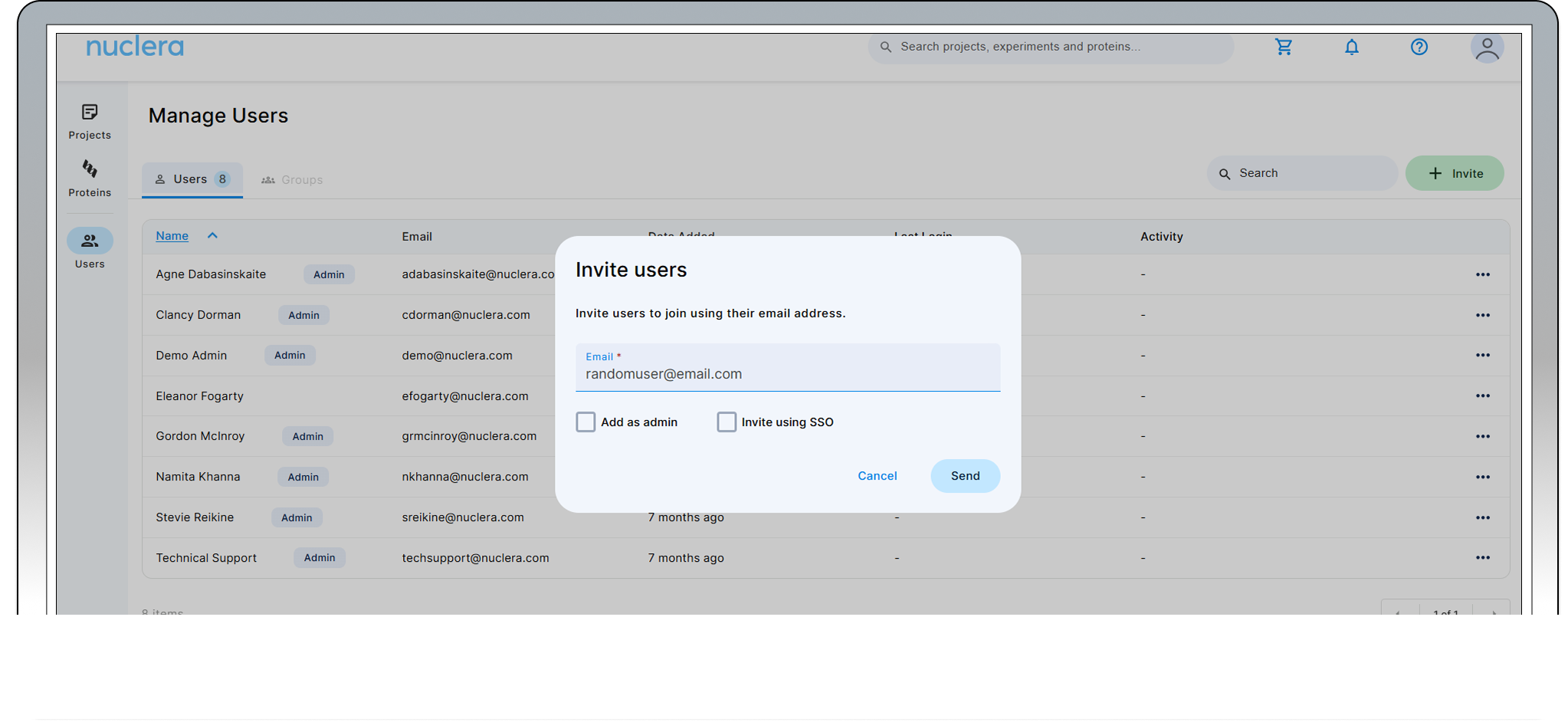
- At this stage it is possible to grant admin privileges to the invited user by selecting ”Add as admin”
- The invitee will receive an email with instructions.
When inviting new users, the admin can enable single sign ON. For further explanation on how to set this up consult our [SSO section](https://knowledge.nuclera.com/docs/02 Design Your Experiment/SSO)
Change users privileges
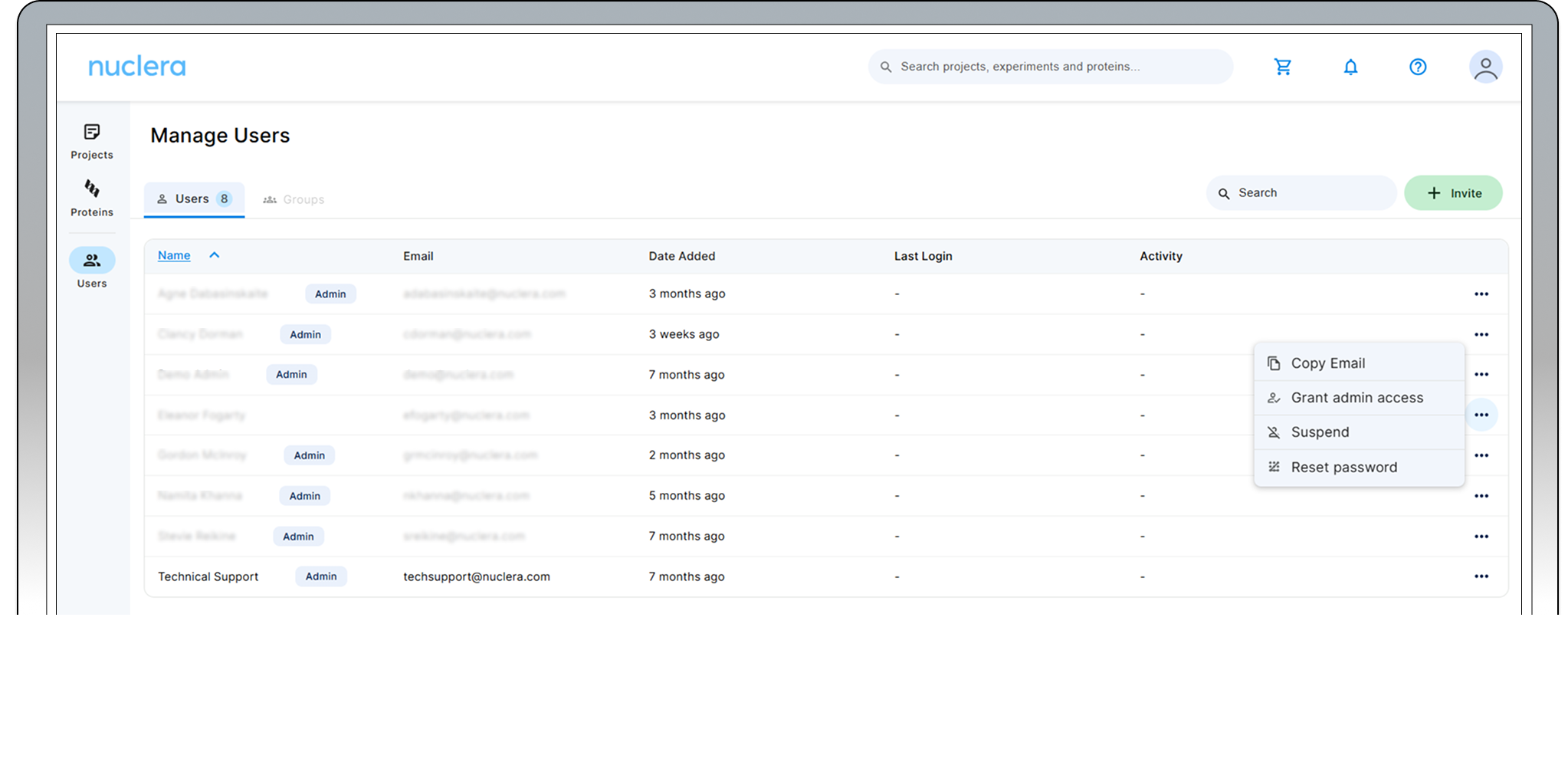
The Admin can change user privileges by selecting the user in the ”Manage users” page. From this page it is possible to: Grant admin access Suspend users access to the cloud software
When browsing the “Manage users” page, select the three dots next to the user and user’s email address on the right hand side of the page.
Set up a project
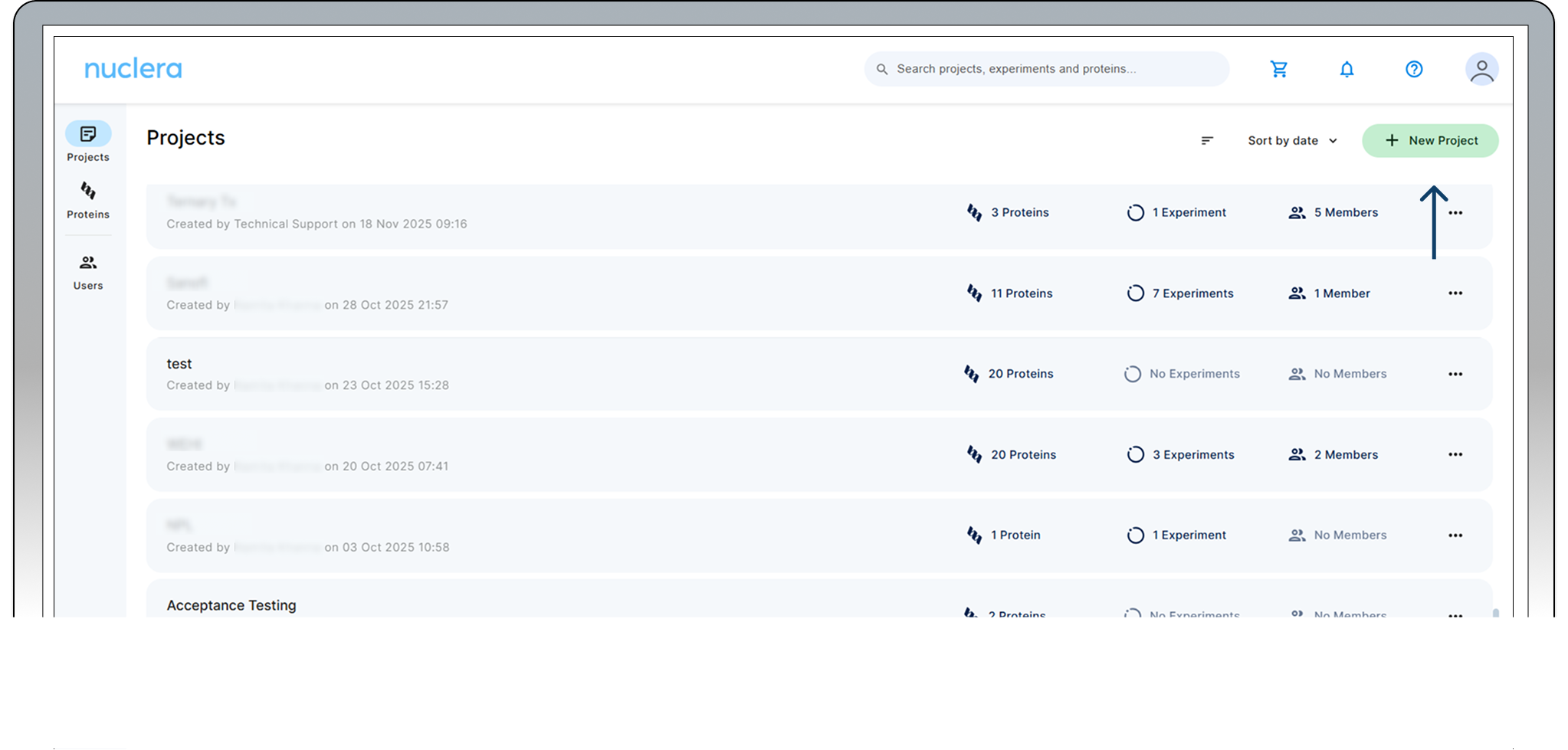
In the eProtein Discovery Software portal, users can create a new project or select from an existing project.
To select an existing project, click on one of the existing projects listed on the screen. To create a new project, click on the [New Project] button located on the top right corner of the screen.
Assign users to project
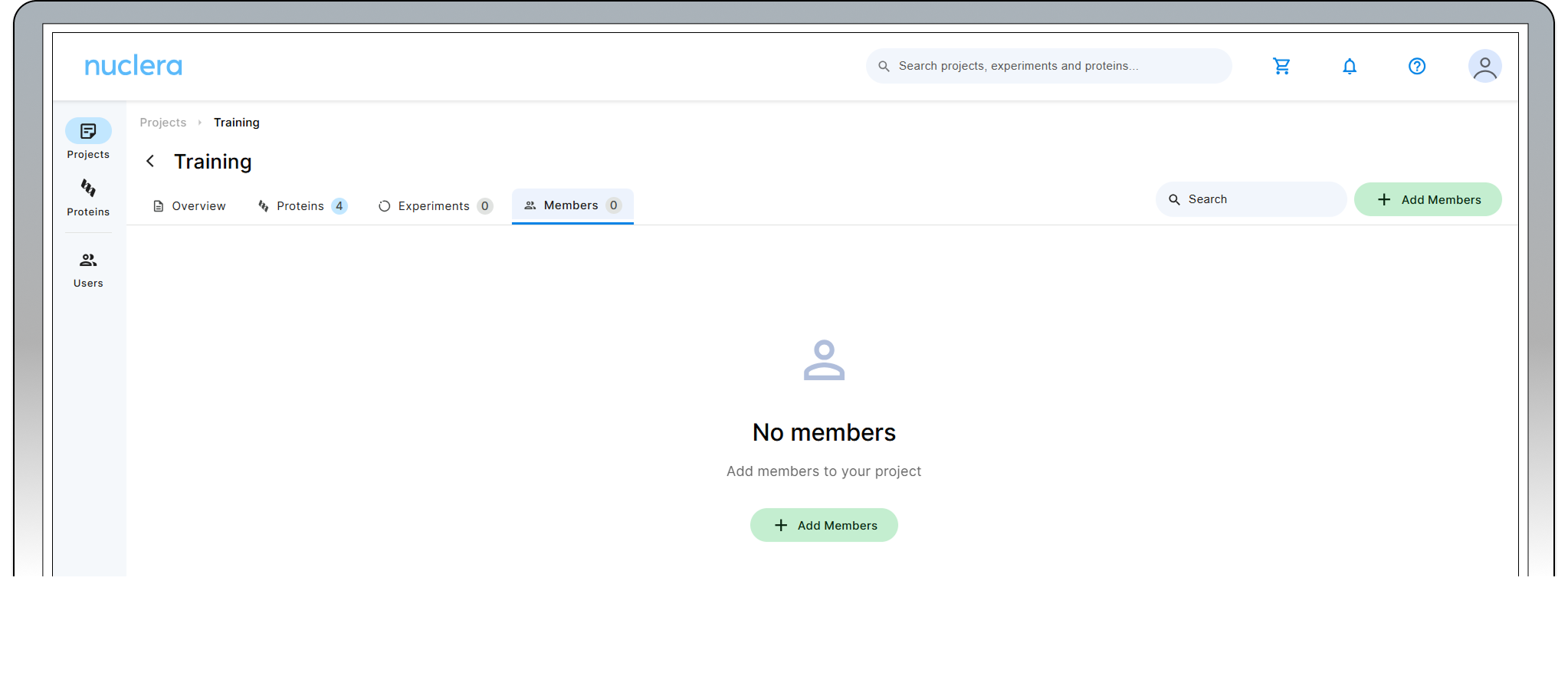
When in the project, select the [Members] tab and select [Add Members]
Nuclera Technical Support:
UK Phone +44 1223 942 761
US Phone: +1 508-306-1297
Email: techsupport@nuclera.com
Offices:
Nuclera UK (HQ):
One Vision Park, Station Road, Cambridge, CB24 9NP, UK
Nuclera USA:
1000 Technology Park Drive, Suite B, Billerica MA 01821, USA
Copyright © 2025 Nuclera Ltd. All trademarks are the property of Nuclera, Ltd. Visit nuclera.com/legal for more info.