Cloud Connectivity and Setup guide
Cloud-connected Instrument software summary, security overview and connection requirements
Nuclera’s eProtein Discovery™ cloud-connected instrument is the only end-to-end protein screening and optimization system that accelerates protein design, cell-free expression, purification and solubility characterization. For the best experience with the eProtein Discovery™ instrument, it needs to be connected to the internet so users can log in to their secure eProtein Discovery™ web space, set up their experiments, order necessary DNA and other consumables and then, once the experiment is loaded and started, monitor its progress and review the results remotely from the comfort of their office using just the web browser. Nuclera is passionate about protecting its customers’ information both in the cloud and on its benchtop instrument. This document provides an overview of Nuclera’s Instrument and cloud connection requirements.
Software communication topology and security overview
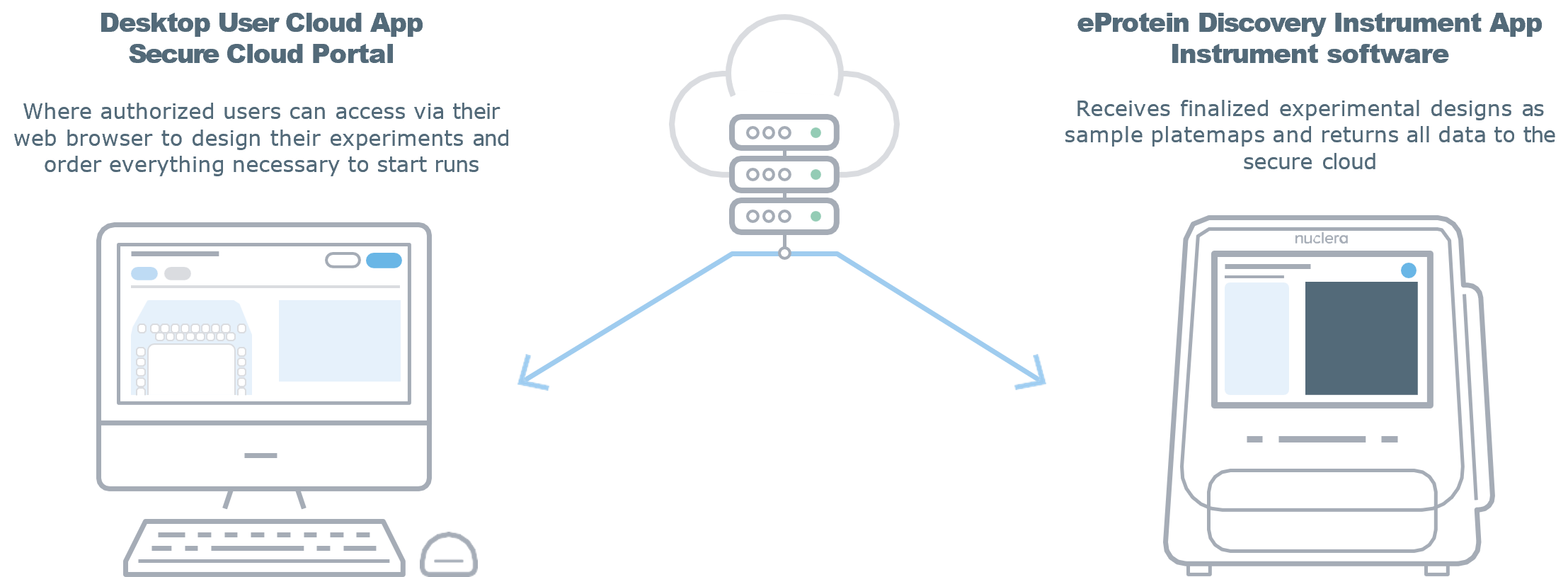
Nuclera’s eProtein Discovery Platform has two major software components; a cloud portal
and instrument embedded software, which communicate with each other through a secure,
encrypted channel.
Cloud software overview
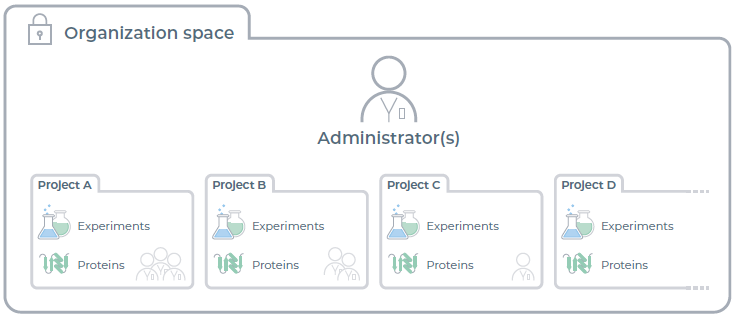
The eProtein Discovery cloud portal software is provided as a web based service from Nuclera’s virtual private cloud. Each customer is provided with their own secure data space where user login access is required and gated by their organization. When a new space is set up for a customer, they nominate at least one user in their organization as an admin user with full control of the space. Organization admin users can then invite other users from their organization and give them access to individual projects. Projects are where proteins (with their sequences and other metadata), experiments and instrument run data are stored and accessed by users authorized by their organization admins.
 When users are invited by their organization admins, they receive an invitation email with a
temporary registration link. This link allows them to register their account and set a password in
accordance with their organization’s policies, which can be changed later. Nuclera also enforces
a minimum 12 character password length for eProtein cloud accounts. Users who are required to
operate the benchtop instrument must also set up an instrument access PIN.
When users are invited by their organization admins, they receive an invitation email with a
temporary registration link. This link allows them to register their account and set a password in
accordance with their organization’s policies, which can be changed later. Nuclera also enforces
a minimum 12 character password length for eProtein cloud accounts. Users who are required to
operate the benchtop instrument must also set up an instrument access PIN.
From cloud software version 1.2 onwards, users can also utilize their organization’s identity provider to allow them to log in with Single Sign On (SSO). Nuclera recommends this option if customers require multi factor authentication or that their login credentials adhere strictly to their own organization’s IT requirements.
Once signed up, users can start registering their proteins of interest by submitting DNA or amino acid sequences inside the project(s) they are members of. The compatibility of these sequences with DNA and protein synthesis will be checked automatically by the cloud software. They can then order DNA through the software, and design their experiments which they will then be able to run on their eProtein discovery benchtop instruments.
Nuclera’s eProtein Discovery cloud software is built with the best security practices in mind. Customer data, such as DNA sequences are only accessible by the authorized users and Nuclera representatives who fulfill these orders and provide technical support (if and when required). The data is encrypted at rest with AES-256 encryption. Data in transit to and from the user browser is encrypted by TLS. Nuclera’s instrument platform’s communications with Nuclera’s cloud are encrypted using transport layer security version three (TLS 1.3) and WireGuard protocols
Instrument embedded software overview
Nuclera’s eProtein Discovery instrument has an integrated onboard computer (NVIDIA) loaded with Nuclera’s software on a custom linux-based operating system. The instrument software controls all operations on the instrument and cartridge. Experiments designed on the cloud software will automatically be transferred to the instrument software where they are accessible through the intuitive touch screen located at the front of the instrument. Users can follow step-by-step instructions on the interface to load and run their experiments. The instrument software carries out the experiment, records the results and uploads result files. A secure network channel between the instrument and cloud-based software enables users to monitor the experiment in real time and analyze data upon completion. Communication is performed via a custom API and secured with TLS 1.3. Users will need to enter their PINs to access the instrument and run their experiments.
eProtein Discovery instruments are able to receive critical software and firmware updates via the same network channel from Nuclera.
eProtein Discovery instrument connectivity requirements
Nuclera’s instrument is capable of functioning in several connectivity modes:
- Cloud connected depending on the customer side network configuration in either:
- Fully cloud connected mode: The instrument has an internet connection where it is capable of reaching Nuclera’s cloud systems for experiment synchronization, system metrics and remote support.
- Cloud connected without remote support mode: The instrument has an internet connection and is able to connect to Nuclera’s cloud systems for experiment synchronization and system metrics but remote support is disabled.
- Standalone depending on the customer-side network configuration in either:
- Standalone mode: Nuclera’s instrument is fully disconnected from the network, experiments are designed right on the instrument touch screen. Data can be exported by USB flash drive.
- Standalone + data export connection mode: Nuclera’s instrument is connected to a customer controlled network with some limited connectivity to allow data export. Experiments are designed right on the instrument touch screen. The instrument is capable of connecting to a local network share to export the data from the experiments
In order for the cloud-enabled instrument to perform the above mentioned functions it needs to be connected to the internet via an ethernet cable. It is configured to automatically receive its IP address, gateway and other network settings via dynamic host configuration protocol (DHCP). In case the customer’s local IT setup requires a static IP address configuration, this can be set up either by the end user from the instrument touch screen (from version 5.1 onwards) or by Nuclera’s field application specialist at the point of installation. Nuclera’s instrument can also support access to the internet through an https proxy if required (from version 5.1 onwards) however it will not tolerate secure sockets layer (SSL) termination occurring on inline network devices, e.g. for the purpose of deep packet inspection.
Nuclera’s instrument will be shipped to clients in standalone mode and can be reconfigured remotely for connected operation assuming that the remote support services have been allowed by the customer’s IT team. Alternatively, the instrument can be reconfigured to operate in cloud connected mode without remote support during the installation visit and assuming that there is a suitable WiFi or cellular signal that Nuclera’s field application specialist can connect to on a temporary basis to configure the instrument.
The instrument connects to Nuclera’s virtual private cloud, hosted on Google Cloud Platform (GCP). The instrument uses Google Cloud Storage for experiment data storage. Google does not provide a fixed IP address range for its cloud storage offering. Consequently, due to various cloud services (including GCP) not using fixed IP addresses, we cannot guarantee that the instrument will behave correctly if connections are limited using an IP address allow list.
When connecting to a network share, the shared folder can be hosted either on a network attached storage device or a locally supplied laptop. Nuclera recommends that customers use a network attached storage device or other Samba3 compatible network share. The customer must ensure that the correct network ports have been opened in any intervening firewalls to allow the instrument to connect to the network share, including in the Windows firewall if connecting to a locally supplied laptop.
Nuclera’s instrument relies heavily on having the correct time. Where a customer’s network has an available DHCP server, if the DHCP server specifies a set of network time protocol (NTP) servers, these will be used. For customer networks where a static IP address is used or where DHCP is not available, the instrument needs to be able to connect to ntp.ubuntu.com as per the table below. During initial setup, Nuclera’s instrument will require additional connectivity which can be removed subsequently, without affecting normal operation.
In case the customer needs to set up firewall rules based on a source IP address or address range for Nuclera’s instrument(s), Nuclera strongly recommends that customers make use of DHCP reservations to ensure that the same IP address is assigned to a given instrument following a reboot. While the instrument is capable of supporting a static IP address configuration (from version 5.1 onwards) combining static IP configuration of the instrument with a DHCP enabled network is strongly discouraged as an IP address conflict may arise when changes are made in future, resulting in an impact to the customer’s network.
Limiting the instrument connection
For best results, Nuclera recommends customers use the instrument in fully cloud connected mode (including remote support). This is best achieved by connecting the instrument to a network which allows internet access without any filtering or proxies but in case this is not possible the following set of URLs will allow the instrument to connect in a more limited way.
Installation and normal operation
| Destination hostname | Destination port | Protocol | Purpose |
|---|---|---|---|
| auth.eu.nuclera.app | 443 | TCP | Initial installation |
| auth.us.nuclera.app | 443 | TCP | Initial installation |
| downloads.mender.io | 443 | TCP | Initial installation |
| esm.ubuntu.com | 443 | TCP | Initial installation |
| eu.hosted.mender.io | 443 | TCP | Initial installation |
| packages.wazuh.com | 443 | TCP | Initial installation |
| pkgs.tailscale.com | 443 | TCP | Initial installation |
| repo.download.nvidia.com | 443 | TCP | Initial installation |
| superusers.eu.nuclera.app | 443 | TCP | Initial installation |
| superusers.us.nuclera.app | 443 | TCP | Initial installation |
| ppa.launchpad.net | 443 | TCP | Initial installation |
| repo.netdata.cloud | 443 | TCP | Initial installation |
| api.netdata.cloud | 443 | TCP | Normal operation |
| app.netdata.cloud | 443 | TCP | Normal operation |
| instruments.eu.nuclera.app | 443 | TCP | Normal operation |
| instruments.us.nuclera.app | 443 | TCP | Normal operation |
| mqtt.netdata.cloud | 443 | TCP | Normal operation |
| storage.googleapis.com | 443 | TCP | Normal operation |
| us-east1-netdata-analytics-bi.cloudfunctions.net | 443 | TCP | Normal operation |
| ntp.ubuntu.com | 123 | UDP | Normal operation |
| s15f98bady02.cloud.wazuh.com | 443,1514,1515 | TCP | Normal operation |
Remote support and network data export
| Destination hostname | Destination port | Protocol | Purpose |
|---|---|---|---|
| derp1-all.tailscale.com | 443 | TCP | Remote support |
| derp10-all.tailscale.com | 443 | TCP | Remote support |
| derp12-all.tailscale.com | 443 | TCP | Remote support |
| derp18-all.tailscale.com | 443 | TCP | Remote support |
| derp19-all.tailscale.com | 443 | TCP | Remote support |
| derp8-all.tailscale.com | 443 | TCP | Remote support |
| derp1-all.tailscale.com | 3478 | UDP | Remote support |
| derp10-all.tailscale.com | 3478 | UDP | Remote support |
| derp12-all.tailscale.com | 3478 | UDP | Remote support |
| derp18-all.tailscale.com | 3478 | UDP | Remote support |
| derp19-all.tailscale.com | 3478 | UDP | Remote support |
| derp8-all.tailscale.com | 3478 | UDP | Remote support |
| controlplane.tailscale.com | 443 | TCP | Remote support |
| log.tailscale.io | 443 | TCP | Remote support |
| log.tailscale.com | 443 | TCP | Remote support |
| Customer NAS / file server | 139,445 | TCP | Network data export |
Typical IT services Q&A
Why do users require access to the eProtein Discovery cloud software?
Users require access to the cloud software to:
- Check their protein sequences compatibility with eProtein Discovery DNA synthesis and cell-free protein synthesis
- Order DNA templates for their proteins from Nuclera
- Design their experiments
- Securely push designed experiments to the instrument via internet connection
- Monitor experiments progress
- Review and analyze the results
What kind of sensitive data is stored in eProtein Discovery cloud software and why?
Protein sequence data (that is considered the most sensitive data that is entered by users) is stored securely by the eProtein Discovery cloud software within the organization space in order to:
- Automatically check for compatibility with DNA synthesis and cell-free protein synthesis
- Synthesize DNA molecules and deliver to your lab for your experiments.
With other DNA providers these sequences are typically communicated by email to order the DNA, and then linger in their inbox. We take the security of your sequences (as well as all other data stored in our cloud system) to the next level by storing it in an encrypted space which is only accessible by your authorized users, or by our employees who need to fulfill your DNA synthesis order or provide technical support.
How is the data online protected?
The protein sequences, experiment results and all other data is
encrypted at rest with AES-256 encryption and are only accessible
by authorized users
What kind of device is the
cloud-enabled eProtein
Discovery benchtop
instrument?
The cloud-enabled eProtein Discovery benchtop instrument is
an IoT device with embedded computer (NVIDIA) with Nuclera’s
custom linux-based OS and proprietary software which runs the
instrument and communicates with the eProtein Discovery cloud
software.
How does the eProtein
Discovery benchtop
instrument communicate
with the cloud?
The eProtein Discovery benchtop instrument communicates with
the eProtein Discovery cloud software through a TLS encrypted
API. This connection is one way, the cloud software does not try to
connect to the instrument.
How would the
instrument receive
software updates?
Updates are received over the air, the eProtein Discovery benchtop
instrument software and firmware updates will be offered to
customers by Nuclera when available and required. The instrument
needs to be online to receive an update.
Nuclera Technical Support:
UK Phone +44 1223 942 761
US Phone: +1 508-306-1297
Email: techsupport@nuclera.com
Offices:
Nuclera UK (HQ):
One Vision Park, Station Road, Cambridge, CB24 9NP, UK
Nuclera USA: 1000 Technology Park Drive, Suite B, Billerica MA 01821, USA www.nuclera.com
Copyright © 2025 Nuclera Ltd. All trademarks are the property of Nuclera, Ltd. Visit nuclera.com/legal for more info.